Showing posts with label General. Show all posts

Monday, 9 February 2015

10 Best Mid-Range Stylish Smartphones 2015

Today technology is changing very fast and we all have cope up with it because nobody wants to stay behind. So, if you are using an old or junk smartphone that is lagging behind in terms of features and looks then its time to change it now. Today's market is loaded with a huge variety of smartphones as smartphones companies are competing with each other and providing the best smartphones at much cheaper prices. There was a time when only very few companies had monopoly on Indian market but after the Android has come the market has fully changed now. Nowadays, there are lots of companies in Indian market including some Indian companies and some foreign companies who are trying to establish in India, which are offering a variety of smartphones at cheaper prices.

There's another reason of providing fully featured phones at budgeted and cheaper prices is, Indian companies are giving tough competition to foreign companies and therefore foreign companies have also reduced the rates of their smartphones. From quiet some time you might have seen some drastic changes in the prices of smartphones of some top companies including Samsung, Google (Moto G), Nokia etc. So, this is the article for those people who frequently change their smartphones and also go with stylish looks and fully loaded features. The smartphones mentioned in the below list are all stylish looking phones, fully loaded with features, have good build quality, and are in budgeted prices, so, you will definitely like them. So, here's the list of some best mid range smartphones:

Lava Iris Selfie 50:


Lava Iris Selfie 50
Lava Iris Selfie 50 is a very stylish smartphone which is especially designed for selfie loving people. Besides being a very stylish looking smartphone Lava Iris Selfie 50 provides some great features that you will definitely like. Some of its features are:
  • 1.2 GHz Quad Core Processor
  • Android V 4.4.2 KitKat
  • 5 Inches IPS Display
  • 1 GB RAM
  • 8 GB ROM
  • 8 Mega Pixel Primary Camera
  • 5 Mega Pixel Secondary Camera
  • 2400 mAh battery
  • Dual Sim Phone
  • Price - 7,499 Rs
You can see that this phone is providing all the necessary features so, this phone is worth of money and will not disappoint you in anyway. You can see its other specifications, features like camera quality, display features etc, and read users reviews by following the below link.

  • Lava Iris Selfie 50 full specifications and users reviews

Redmi Note 4G:


Redmi Note 4G
If you like watching videos and want a large display smartphone then Redmi Note 4 is a great choice. This phone provides all the features at budgeted price and has very good users ratings. Redmi Note 4G comes with 5.5 Inches HD IPS display that will give you a pleasing experience while watching videos on it. Redmi Note 4G offers some great features like:
  • 1.6 GHz Quad Core Processor
  • Android V4.4.2 KitKat
  • 5.5 Inches HD IPS Display
  • 13 Mega Pixel Primary Camera
  • 5 Mega Pixel Secondary Camera
  • 2 GB RAM
  • 8 GB ROM
  • 3100 mAh Battery
  • Single Sim Phone
  • Price - 9,999 Rs
If you can invest little higher then Redmi Note 4 is a great option. This phone has great design and is very lightweight smartphone. To see its full features, specifications and users reviews you can follow the below link:
  • Redmi Note 4G full specifications and users reviews

Xolo One:


Xolo One
If you don't like using very large screen smartphones then Xolo One is a great option. Xolo One comes with a premium look as it is a very slim phone and has leather finish at its back. It has 4.5 inches display but when you compare it with any 4 inches display smartphone then you will find that it is almost similar in size the only difference is that it has large display then a 4 inches phone. In short Xolo has reduced any extra body material from it which gives it a premium look and makes it comfortable in users hands. It comes in four different colors but in black color it looks awesome because it has leather finish at its back. Besides being a stylish and comfortable smartphone Xolo One provides various great features:
  • 1.3 GHz Quad Core Processor
  • Android V4.4.2 KitKat [Upgradable to Lollipop (Update Available On Xolo's Site)]
  • 4.5 Inches IPS Display
  • 5 Mega Pixel Primary Camera
  • 0.3 Mega Pixel Secondary Camera
  • 1 GB RAM
  • 8 GB ROM
  • 1700 mAh Battery
  • Dual Sim Phone
  • Price - 5,450 Rs
Xolo One is a great smartphone at this price range. It has premium looks, sufficient features and has a very good build quality. You can see its full specifications, features, and users reviews by following the below link:
  • Xolo One full specifications, features and users ratings.

Lenovo A6000:


Lenovo A6000
Lenovo A6000 is another great smartphone in this price range. Lenovo A6000 comes with a 5 inches HD IPS display which give gives a pleasing experience while watching videos and playing games. Lenovo 6000 is one of the stylist and most slimmest smartphone. This smartphone has Twin Dolby speakers which offer enhanced volume and crisp sound, so, you can enjoy your videos and mp3 with enhanced high quality sound. Lenove A6000 also comes with fully loaded features like:
  • 1.2 GHz Quad Core Processor
  • Android V4.4.4 KitKat
  • 5 Inches HD IPS Display
  • 8 Mega Pixel Primary Camera
  • 2 Mega Pixel Secondary Camera
  • 1 GB RAM
  • 8 GB ROM
  • 2300 mAh Battery
  • Dual Sim Phone
  • Price - 6,999 Rs
Lenovo A6000 is a stylish phone with lots of features, so, you can choose it without any hesitation. It has high user ratings that you can check by following the below link:
  • Lenovo A6000 specifications, features, and users ratings.

Asus Zenfone 5 A501CG:


Asus Zenfone 5 A501CG
In mid-range section Asus has also launched a very durable set. Asus Zenfone is a robust smartphone which comes with various great features. Asus Zenfone comes with a 5 inches IPS display that is protected by corning gorilla glass 3 which is a strong glass and protects mobile from scratches. No other smartphone at this price range is offering gorilla glass. It also comes with 2 GB ram which gives an effective gaming experience. Some of the features of Asus Zenfone 5 A501CG are:
  • 1.2 GHz + Intel Atom Z2520 Processor with Intel Hyper Threading Technology, Dual Core processor.
  • Android V4.4 KitKat
  • 5 Inches IPS Display (Corning Gorilla Glass 3)
  • 8 Mega Pixel Primary Camera
  • 2 Mega Pixel Secondary Camera
  • 2 GB RAM
  • 8 GB ROM
  • 2110 mAh Battery
  • Dual Sim
  • Price - 7,999 Rs
This Asus phone is a high class smartphone. It is a very slim set and build quality is also very good. You can read its full specifications by following the below link:
  • Asus Zenfone 5 A501CG full specifications, features, reviews and current market price. 

Huawei Honor Holly:


Huawei Honor Holly
Huawei Honor Holly is a great smartphone which provides everything in this price range. This phone will not disappoint you in anyway. It has an awesome look and if we talk about its features then you will get everything in it. This phone has more internal memory than any other set in this price range. Huawei Honor Holly is loaded with following features:
  • 1.3 GHz Quad Core Processor
  • Android V4.4 KitKat
  • 5 Inches HD Display
  • 8 Mega Pixel Primary Camera
  • 2 Mega Pixel Secondary Camera
  • 1 GB RAM
  • 16 GB ROM
  • 2000 mAh Battery
  • Dual Sim
  • Price - 6,999 Rs
If you want all features in your smartphone at cheaper prices then this is the set that you will definitely like. It has very high users ratings in terms of performance, build quality, and looks. You can read its full specifications and users reviews by following the below link.
  • Huawei Honor Holly full specifications, features, users reviews and ratings.

Microsoft Lumia 535:


Microsoft Lumia 535
If you are tired of android smartphones or you love using windows phone then Microsoft Lumia 535 is great choice. After trying several combinations in mid section finally Microsoft has launched a great device. Microsoft Lumia 535 comes with a 5 inches IPS LCD screen on which you can play high quality videos. This handset is especially designed for video calling and taking selfies. It comes with a Lumia Selfie app which provides easy access to the secondary camera. Microsoft also offers all the features that we seek from a mid range section smartphone. It comes in four different colors that will definitely get your attention. Microsoft Lumia 535 offers the following features:
  • 1.2 GHz Quad Core Processor
  • Windows 8.1 OS
  • 5 Inches IPS LCD Screen
  • 5 Mega Pixel Primary Camera 
  • 5 Mega Pixel Secondary Camera
  • 1 GB RAM
  • 8 GB ROM
  • 1905 mAh
  • Dual Sim
  • Price - 8,990 Rs
Microsoft Lumia 535 is a great phone from a big brand. This phone also provides everything at this price range. So, purchasing a Microsoft Lumia 535 is also a good deal. You can see its complete details by following the below link:
  • Microsoft Lumia 535 full specifications, features and users reviews.

Lenovo A536:


Lenovo A536
There's another great smartphone from Lenovo. Lenovo A536 is a very slim phone and offers all the essential facilities. This phone has premium build quality as it is made up of polycarbonate material. If offers a good camera, fast and efficient processor which make it run smoother. The basic specifications of Lenovo A536 is as follows:
  • 1.3 GHz Quad Core Processor
  • Android V4.4 KitKat
  • 5 Inches TFT Capacitive Touchscreen
  • 5 Mega Pixel Primary Camera
  • 2 Mega Pixel Secondary Camera
  • 1 GB RAM
  • 8 GB ROM
  • 2000 mAh Battery
  • Dual Sim
  • Price - 7,925 Rs
Lenovo A536 is also a worth of money product so, you can give it a try if you want a very slim set. You can see its full specifications by following the below link:
  • Lenovo A536 full specifications, features, users ratings and reviews

Lava Fuel 60:


Lava Fuel 60
If you want a mid range phone that can give you a long lasting battery life then there is no set better than Lava Fuel 60. This set is little thick as compared to all other smartphones mentioned here but you can understand why it is thick. Lava has maintained this set brilliantly. Even after having a big battery this set doesn't look awkward. Besides battery life it comes with great features like it has 5 inches HD IPS fully laminated display with Gorilla Glass 3 protection. It also has a very good rear camera and it uses HotKnot technology for faster data transfers between devices. The basic specifications of Lava Fuel 60 are as follows:
  • 1.3 GHz + Cortex-A7 Quad Core Processor
  • Android V4.4 KitKat (Upgradable To Lollipop)
  • 5 Inches HD IPS Display
  • 10 Mega Pixel Primary Camera
  • 2 Mega Pixel Secondary Camera
  • 1 GB RAM
  • 8 GB ROM
  • 4000 mAh Battery
  • Dual Sim
  • Price - 8,499 Rs
Lava Fuel 60 is a great smartphone if you are looking for longer battery life, robust and durable set. It is worth of money product. You can see its full specifications by following the below link:
  • Lava Fuel 60 full specifications, features and users reviews

Xolo Omega:


Xolo Omega
Xolo Omega is one of the best smartphone from Xolo in this price range. It comes with 1.4 GHz Octa Core processor that makes multitasking very easy and convenient. It is HIVE phone from Xolo, Hive is a software platform that offers a host of new features and takes your smartphone personalization to the next level. It is a very well designed smartphone which provides great comfort while holding it. It has rounded edges which makes it convenient while playing games, watching movies and fits in you hands effortlessly. The basic specifications of Xolo Omega are as follows:
  • 1.4 GHz Octa Core Processor
  • Android V4.4 KitKat
  • 5 Inches HD IPS Display
  • 8 Mega Pixel Primary Camera
  • 2 Mega Pixel Secondary Camera
  • 1 GB RAM
  • 8 GB ROM
  • 2100 mAh Battery
  • Dual Sim
  • Price - 7,695 Rs
Xolo Omega is a great set for those who likes playing games and doing multitasks. It also has Yamaha amplifier which provides great music experience.This is one of the best smartphone in this category. You can read its full specifications and users reviews by following the below link.
  • Xolo Omega full specifications, features and users reviews
Read more ...

Sunday, 1 February 2015

How To Avoid Google Penalties ?

Bloggers and webmasters who create blogs and websites know about Google penalties. Google gives penalty to the blogs or websites which create any kind of spam. We all work hard to create a website that could rank high in Google search results and get us some good traffic. But if we willingly or unwillingly do some activities that Google doesn't like then we might face a Google penalty. Before going any further we want to clear the term "Google penalty" so that all of our users can understand actually what is Google penalty ?

What is Google Penalty ?


Google penalizes or gives penalty to all those sites that create spam, linked in spamming activities, try negative SEO techniques to rank high in Google, provides very low quality content or copied content, malwares etc. Google uses algorithms that checks quality of a site and the two most common algorithms are called Panda and Penguin algorithms. These algorithms automatically check the sites for quality and penalize sites for spamming and providing low quality content. The penalties could be minor or major. If a website faces a penalty then as a result of it, it will face some issues like - some drop in rankings, not ranking at all in Google search results or even the site could be totally De-indexed from Google. Almost every site faces Google penalty whether it could be a big site or small but as Google works for providing quality to its users, so, site owners also maintains their site for ranking high in Google. So, its better if we could first understand about the most common algorithms used by Google to check quality of a site and also the penalties associated with them. So, our first very common algorithm that almost affects all sites on internet is Google Panda Algorithm.

What is Panda Algorithm?


Google Panda is an algorithm that evaluates the quality of a website. Google call it a "Quality Algorithm", which determines whether a website is providing quality content or not. If a website provides low quality content that is duplicate or repetitive content, copied content, thin content (extremely less content), missing site-wide information like contact page etc then Panda algorithm considers the site as a low quality site and assigns it a low quality score, which makes it difficult for a site to rank high or even rank in Google search results. The penalty given by this algorithm is called Google Panda Penalty. The affects of this penalty could be, your site will face a big traffic decline, your post or pages will face difficulty in rankings, your specific posts could be De-indexed from search results etc.

Now, the other very common algorithm used by Google is Google Penguin Algorithm.

What is Penguin Algorithm ?


Google penguin algorithm is an algorithm which checks the quality of links that is whether a link created is solely a genuine or natural link or it is just created to manipulate the search results. Any link created with the purpose of increasing the rank in Google results is considered as the violation of Google webmaster guidelines. This includes negotiating link exchanges, paid links, automatic links created by SEO tools etc. The penalty given by this algorithm is called a Penguin Penalty. The affects of Google Penguin Penalty could be, sharp drop in rankings, De-Indexed pages or site etc. To find out whether your site has been De-Indexed or not, you can simply search it on Google as mentioned below:
  • Go to Google.com
  • Then enter site:www.yourwebsitename.com and click on search tab.
  • If the resulting page is your website's homepage then you don't have to worry about anything otherwise your site has been penalized by Google.
If you want to check whether on some specific keyword your site is ranking or not then simply follow the below steps:
  • Go to Google.com 
  • Then enter "site:www.yourwebsitename.com keyword" in the search bar and click on search tab.
  • If Google returns your pages then everything is fine otherwise you will be facing penalty on specific keyword.
So, these are the two major algorithms and penalties associated with them. But, Google also gives another penalty called manual penalty, which is given manually to sites.

What is Manual Penalty ?


Manual penalty is a manual action taken against your site, this could be a result of violation of Google webmaster Guidelines, which includes selling links, unnatural links, cloaking(serving different content to Google and user) . This penalty can also cause drop in rankings, De-Indexation of pages and website etc.

How To Avoid These Penalties ?


You can avoid these penalties easily by following the below steps:
  • Write high quality content.
  • Write at least 400-500 words articles.
  • Do not purchase or sell links.
  • Do not copy others content.
  • Do not create duplicate articles or the articles that are almost duplicate to other articles present on your site.
  • If your site's niche is something like that forces you to write duplicate content then simply try to increase your post length with some different keywords.
  • Do not use excessive links or affiliate links, if your site provides excessive affiliate links then use nofollow attribute for your links.
An example of nofollow attribute: <a href="http://howdon.org" rel="nofollow">HowDon</a>

Note: Nofollow attribute tells the Google bots not to count these links for ranking.
  • If you are providing high number of external links then try to back them by enough content.
  • Do not provide anything like script or code that could be considered as spam.
  • Do not infringe copyrights or patents.
You may also like:
Read more ...

Saturday, 31 January 2015

How To Search Copyright Free Images For Your Blog ?

We always try to find best images for our blogs that can make our blog attractive because a good looking blog always gets the visitors attention. People love to visit sites that look attractive, provide good content and offer a simple and convenient user interface. But nowadays search engines do not like any kind of copyrights infringement and also ad networks like Google Adsense, Tribal Fusion etc which have very strict terms also not like copyright infringement. Most of the new bloggers do not focus on image copyright issues which can affect them in terms of Google's search rankings or denial of their publishers application on Google Adsense or on some other network. More than that some companies do not like their images to be copied by someone so they can even claim for them. So, its better to search free images which are labeled for reuse and do not infringe any copyrights. So, now a question arises, Where to find free images ?

Where To Find Free Images ?


Since search engines do not like copyright infringements so, they also provide a way to deal this issue. Nowadays, search engines are providing free images that are labeled for reuse. They simply offer some filters that you can use to search the images for yourself. They offer some filters like image labeled for public use, labeled under public domain or free to reuse. Here, we will talk about two major search engines that are providing this service. So, first we start with Google:

How To Search Free Images On Google ?


Searching a free image on Google is very easy and doesn't take your much time. The all you have to do is to,
  • Go to Google.com
  • Then Click on Images.
  • Then search your required image.
  • Now you will see an option called Search Tools.
  • Simply click on Search Tools option as shown in screenshots.
  • Now click on Usage Rights.
  • Then you will see some options but since we are talking about free images only so, click on labeled for reuse.
Google Image Search Lableled For Free Use
  • Then Google will show you only those images that are in public domain that is images free for reuse.
  • You can select other options like images labeled for reuse with modification, labeled for non commercial reuse etc.
Now, lets talk about our other major giant.

How To Search Free Images On Bing ?


The process here is also very similar to Google,
  • First go to Bing.com
  • Then click on images.
  • Now search your desired image by entering your keyword.
  • Now, here you will also find an option called License.
  • Then simply click on License.
  • Now, again you will find some options like public domain, free to use and share etc.
  • Then simply click on public domain or free to use and share option to search your copyright free images.
Bing Image Search License Filter - free to use and share
Another way of searching free images for your blog is, you can search images on some free image sharing sites. One of the best site that we also use is Pixabay.com.

Search Free Images On Pixabay:

Pixabay Image Search Website Screenshot
Pixabay is especially designed for searching free images. So, all you have to do is to enter your keyword to search images of your choice. Since all images on Pixabay are free, so, you don't have to use any filters to search free images.

Also Read:
Read more ...

Wednesday, 10 September 2014

How To Refresh Old Articles Of Your Blog ?

Photo Courtesy: www.pixabay.com
Old articles are like old pillars of a home, which holds the base of your house. You can renovate them to make your home stronger but if you remove them without a proper replacement then your home cannot stand even for a single second. Similarly our old articles are the base of our blog and they also need to be either refreshed or to be replaced with a better article that can take its place. Internet is running very fast, everyday new bloggers are writing attractive contents and making the competition tough for the pro bloggers. So in such case if you are not refreshing your content then you are definitely going to loose a huge traffic from your site. Keeping your content fresh is not a very tough task and if you are keeping it fresh by updating them with necessary updates then you can again give the life to your old articles.

Refreshing article is also important because search engines also want to be updated with time and they also try to give the fresh and best results to its users. So keeping the content fresh has become a necessity for bloggers and for this we need a proper strategy. So lets discuss some points that you should keep in mind while refreshing your old articles.

Before we start discussing about the ways to refresh the old articles, we would like to discuss three important questions that might help you later in the article, these are:
  • Why it is important to refresh old articles ?
  • How to select articles to refresh ?
  • What is the optimum time period to routine check an article for refreshment ?
 So let we discuss these questions one by one in brief:

Why it is important to refresh old articles ?


Refreshing old article is important because with the time everything changes, so if your article is about a service, tool or any other information then with time there is possibility that it might have changed over the time. So if your article is not meeting the current needs and requirements then it is of no use for anyone either it is your website visitors or you. Also an old article can increase the Bounce rate of your blog because if a visitor comes to your blog/website and doesn't find the matter that he/she is looking for, then he/she will quickly leave your site, which will result in a high bounce rate for your blog which is not good for your Google page rank as well as Alexa rankings.

Also Read: Why Webmasters/SEO Blogs Rank High In Alexa Rankings ?

How to select articles to refresh?


To select an article for refreshment, you should focus on few small things:
  • First use any traffic monitoring tool like Google Analytics, Clicky, Piwik, Histats etc to check the traffic of different pages of your blog.
  • Now in your traffic monitoring tool look for the old article that are receiving huge traffic. 
  • Select these articles first because if they have irrelevant content or old information that is of no use then they will definitely increase your blog's bounce rate.
  • Also these are the articles that are still receiving some traffic for you so keeping them refresh can also increase the chances of getting more visitors to your blog.
  • After these articles, select the article that are receiving moderate and low traffic.
  • Try to select low traffic articles at last because they require more work than the articles that are receiving good or high traffic. Also there is more possibility that these articles are of no use at present date. If that's the case then simply delete the article and make your website fast loading.

What is the optimum time period to routine check your article for refreshment ?


  • You can routine check your article in every three months to ensure that if something changes by night then you do not loose much traffic. However if possible, try to check your articles in every two months.
Now we think we have discussed enough about importance of refreshing an article, selection procedure and time duration to routine check your article. So now its time to discuss the ways to refresh an article. Below are the following steps that you can follow to keep your content fresh and up to date:

Check Articles For Errors:


While refreshing an article, first check the grammatical errors, spellings mistakes because these are the mistakes that we often do. So if you are refreshing your article and giving it your valuable time then try to remove every possible errors from it.

Update Article:


This is the most important step in the process, update your article with any necessary details, try to make it updated. For example: If your article is about any tool and a new version of that tool is available now so update it with the details of the new version of that tool.

Add Few Extra Lines:


Try to add few extra lines in your article, and mainly focus on giving the keywords in those lines. This can bring the life to your old article.

Link Your Old Articles To New Ones:


As a blogger we keep writing articles on regular basis, so our article's directory keeps on increasing. So, look at your old article and try to track the keywords for which you have new articles. Link those keywords to new articles and also add few more articles links by giving also read, recommended articles etc. to reduce the bounce rate of your blog.

Link Your New Articles To New Ones:


This is opposite of what we have discussed in our previous step but it is also an important step. Try to link your new articles with old ones so that every article of your blog get some visitors and also it will help you to increase the number of page views of your blog.

Optimize Images:


As we already said internet is getting faster in every aspect and we all learn with time, so check out your old images whether they are too heavy or making your website slow. If this is the case then download those images and use a good image compressor to reduce the size of image and then again upload them to make your website fast.

Remove Irrelevant Or Old Information that is of no use:


Try to remove all irrelevant or outdated information from your articles and fill it up with the new and more detailed  information.

Share Your Article On Social Networks:


This is another very important step as it can also bring life to your old articles, once you update an article then share them on social networks. Since we all the power of social networks so we don't think we need to describe it. ☣

You may also like:
Read more ...

Why Webmasters/SEO Blogs Rank High In Alexa Rankings ?

Alexa Ranking might be nothing for some people but the people who know the importance of Alexa rankings take it very seriously. Although Alexa rankings does not show the full potential of a blog/website but still it is very important to gain the interest of the users and advertisers who know about Alexa rankings. So before going any further lets first discuss about the benefits of having a good Alexa rank:
  • Alexa rank is very important to gain the interest of the users. The people who use internet on a regular basis know the importance of Alexa rank and consider the blogs as good, if they have high Alexa rank.
  • Again Alexa rank is important to gain the interest of the advertisers. Advertisers always keep looking for good blogs that receive huge as well as quality traffic. So if a blog has high Alexa rank then it shows that the blog not only receive huge traffic but it also receives quality traffic as it shows most of the visitors of the blog/website are regular internet users.
  • Having a good rank in any field always makes you superior than others. So if a blog has high Alexa rank then people will consider it as a superior blog than its competitors blogs. Also people like to visit a blog more confidently if they see that the blog has high Alexa rank, Google Page Rank, Correct and useful information, Good layout and design etc.
  • If a blog has high Alexa rank mainly under 100,000 then Alexa shows some additional stats about the blog which can help you to better optimize your blog for search engines as well as for your blog users.
So now lets back on topic, why webmasters/ SEO blogs ranked high in Alexa rankings. You can get the answer of this question if you know how Alexa ranks a blog, so now we are describing here how Alexa ranks a blog/website and we hope you will get your answer from it.

How Alexa Ranks a Blog/Website ?

  • Alexa consider various factors to rank a blog such as number of visitors, page views, bounce rate, visitors location etc.
  • But the main thing is that Alexa counts only those visitors who have Alexa toolbar installed in their web browsers. So to rank high in Alexa rankings your blog must be visited by the visitors who have Alexa toolbar installed in their browser.
  • Alexa toolbar not only shows the ranks of blogs/websites but it also sends the information about the sites to the Alexa's central server, which then uses that information to calculate the rank of a website.
So now we hope you have got your answer. If not, then read the next point.

Why Webmasters/SEO Blogs Rank High In Alexa Rankings ?

  • So the answer of this question is that webmasters/ SEO blogs are mostly visited by the users who have same kind of blogs and hence most of the visitors visiting those blogs already have Alexa toolbar installed in their web browsers. And that is the reason why their blogs rank high in Alexa rankings.
You May Also Like:
Read more ...

Tuesday, 9 September 2014

How To Find BSNL Broadband User Id ?

Most of the time we configure our modems once and leave them untouched because they have an auto connect feature so we do not require to enter our user id/username and password every time we want to connect to internet. This is most basic reason why we forget our username's/user id's and passwords.

BSNL is an Indian Telecom company which also provides broadband through landlines, as discussed above most of the broadband users forget their user id and password as they configure their modem once and after that they set it on auto redial mode. Another reason for forgetting the user id or better to say that not knowing the user id and password is when we apply for a broadband connection, the broadband company simply sends their engineers to set up our modem and after setting up the modem their engineers just walk away without telling us the username and password.

So if you are the one who is finding it difficult to find your BSNL user id and password then you are at the right place. In this tutorial you will find the four ways through which you can find your BSNL broadband user id easily.

So these are the four simple approaches :

  • Finding it on your monthly bill.
  • By using the BSNL self-care portal service. 
  • By using customer care service.
  • By guessing it by yourself.
Lets discuss the first method which is an easy approach as compared to the second method but the second method has its own advantage so we discuss it in details after discussing the first way of finding the BSNL user id. Third approach is also an easy approach but as we all know that BSNL's customer service is pathetic but since it is a way so we would look into it also. And the fourth and last approach is for those who are not able find their BSNL broadband user id by all the three methods.

Finding BSNL User Id on Monthly Bill:

  • If you are a BSNL user from some time and regularly getting your bills then this approach is a better for you because there is not need to register for BSNL self-care portal.
  • So first take out your monthly BSNL bill and see the second page of the bill.
  • Here in the corner you will find your BSNL broadband user id which would look like:
  • [Two Characters][STD code without zero][Your Phone Number][Underscore][Some BSNL Code]
  • Now you have your user id, so you can use it to connect to the internet.

By Using The BSNL Self-Care Portal Service:

  • If you are a new BSNL user and haven't received your first monthly bill from BSNL then you can choose this option.
  • The first thing you have to do is to register an account on BSNL Selfcare Portal. You may find it difficult because BSNL has separate sites for different regions so follow the below tutorial if you don't know your region as well as the other details which are required for registering an account on BSNL Self-care Portal.
  • How To Register For BSNL Self-Care Portal ?
  • After creating an account on BSNL Selfcare Portal, simply Log in with your username and password provided by the BSNL.
  • After that you will be redirected to your account.
  • Now look at the left sidebar and click on My Sevices And then select View Broadband Usage from the list as shown in screenshots.
  • Now you can see your broadband user id, which is given just below the heading "Broadband Usage Details".

How To Get The Password ?

  • By default the BSNL broadband password is "password" itself that is you have to write "password" in the password field.

By Using Customer Care Service :


As we all know that BSNL customer care is not good but still they provide good service in some areas so there is a possibility that they might help you out. So for getting your BSNL broadband user Id and Password dial 1504 (BSNL Broadband Customer Care Number) from your land line phone and ask the customer care executive for your Broadband user id and password. If possible he/she will provide you your broadband id and password.

By Guessing It By Yourself:


As we have already discussed the format of BSNL broadband user id in first method and also we know that the default password is "password" itself so it is not difficult to guess the BSNL broadband user id.
Since we know the format which is:
[Two Characters][STD code without zero][Your Phone Number][Underscore][Some BSNL Code]
So, the first thing we need to figure out is Two Characters.

How To Find These two characters ?


The first two characters of your BSNL broadband user id is generally the first two letters of the name on which land line is registered.

For example: If somebody has a Land line connection with the name "Ajay Singh"then his broadband user id's first two characters would be "aj". Make sure to write these letters in small letters/lower case because all letters in BSNL broadband id are in Lower Case.

Now the Second Field is STD Code, so if you have a land line connection then it is obvious that you know your city's STD code. So from the STD code remove the first number which is generally zero.

For example: Suppose your city's STD code is 0562, so remove the zero from it and use the last three letters that is 562.

Now our Third Field, which is Phone Number. There is no need to discuss it because we all know our phone numbers. So here we are taking an example of phone number so that we can use it to show you how your user id will look like after filling up all the fields.

Sample Phone number: 2212XX7 

Now the Last field, which is BSNL Code, generally they use "ncdr" at the end of the broadband user id but if it doesn't works for you then you can ask the code from any friend living near by you who is using BSNL broadband. Generally BSNL gives the same code to all users for a particular region / area.

So after filling up all the fields from our examples our newly generated BSNL Broadband User id will look like : aj5622212XX7_ncdr

Also Read:
Read more ...

Monday, 1 September 2014

Which USB Data Cards Are Compatible With D-Link DSL 2750U Wireless N ADSL2+ 4-Port Wi-Fi Router

D-Link DSL 2750U Wireless Wi-Fi Router is a great wi-fi router if you use it with a ADSL connection but if you are planning to use it with USB Data Cards then the first thing you should know about this router is, it is only compatible with D-Link Data Cards. So if you want to use it with other dongles then we may suggest you to choose any other Wi-fi router. Many people purchase it without reading the proper reviews about this router. Although its a very good router at affordable prices but since it only supports the D-Link Data Cards so this is the only major drawback of this router otherwise it fulfills all the customers expectations.

Yesterday we contacted their customer care executives three times to know which USB Data Cards are compatible with this router and the devices that they suggested us are listed below. We contacted them thrice so that we could provide you the accurate information and to maintain the integrity of this blog. Because in some cases we have found that some inexperienced / new customer care executives sometimes misguide us and because of their mistakes we have to suffer. So if you want to use this router with USB Data Cards then you can select any one of the device from the given list.

Here's the list of supported Data Cards :
  • D-Link DWP -157 21 Mbps Data Card 
  • D-Link DWP-156 14.4 Mbps Data Card
  • D-Link DWM-156 14.4 Mbps Data Card 
Do you know other Data Cards that are compatible with D-Link 2750U Wi-Fi router ? if yes, Then please share their names and model numbers in comments.
Read more ...

Saturday, 30 August 2014

How To Generate URL For A Flash File ?

In our previous articles we have discussed about how to save a flash file from a website and how to use a flash file on website or blog. So, this is the article which will complete procedure of saving a flash file, generating URL of Flash file and Uploading/using a flash file on website. So we consider that you already have a flash file or if you do not have it yet then you can follow the below article:
Now we have to generate the URL for the flash file so that we can use it on our blogs/ websites. In previous article you will find that we first find out the URL of flash file and then using that URL we download it from the website. So you can also use that URL if you do not want to generate it by yourself. But that method is not a very effective one because the person who has uploaded the flash file can remove it from the server any time so your flash file will also stop working. Hence it is better to upload it on a server or website to get the URL and then copy the generated URL to use it anywhere on the net. So a new question arises:

Where To Upload a Flash File ?

  • You can upload a flash file on Google sites a free service provided by Google.
  • For this simply open http://sites.google.com in your browser.
  • If you already have a Google account then simply log in to Google sites otherwise sign up for a new Google Account.
  • After log in you will be taken to the Google Sites Homepage.
  • Then click on Create tab to create a new site.
  • After that you will be redirected to a new page where you have to fill up some required fields like name of your new site, site location etc.
  • After filling up the fields click on Create tab as shown in below screenshots.
  • After that your site will be created and you will be redirected to your newly created site.
  • Now you have two different ways to upload a file.
  1. By using the settings tab.
  2. By Creating a new page.
So these are the two ways through which you can upload your flash files, we are describing them one by one now its up to you which way you want to choose.

By Using Settings Tab:

  • In your newly created site you can see the Settings tab on the top right corner of your site.
  • Click on Settings tab and then select Manage Site from the list.
  • After that you will be redirected to settings page.
  • Now in the Manage site section, on the left side you will find a field called Attachments.
  • Then click on Attachments and then upload your file as shown in below screenshots.
  • After your file gets uploaded you can see the two options: View and Download.
  • Simply take your mouse over Download, then right click your mouse and select Copy Link Location from the list as shown in below screenshots.
  • Then open Notepad and paste the copied link.
  • Now you can see a URL that contains .swf, so remove everything that comes after .swf as shown in screenshots.
  • Now you have your Flash File URL, copy it and use it where ever you want.

By Creating A New Page:

  • In your newly created site you can see the New Page tab on the top right corner of your site.
  • Then click on New Page tab.
  • After that you will be redirected to a new page where you have to fill up the name of your new page. 
  • So fill the Name Your Page field with your chosen name and in Select A Location section select Put Page Under Home from the list.
  • After that click on Create tab and your new page will be created.
  • In your newly created page you can see an Add Files tab.
  • Then click on Add Files tab and upload your flash file.
  • After your file gets uploaded, take your mouse over the file name and press right button of your mouse and select Copy Link Location from the list.
  • Then open Notepad and paste the copied link into it.
  • Then remove everything that comes after .swf in the URL.
  • Now you can copy your newly generated link of your flash file and use it wherever you want.
Also Read:
Read more ...

Friday, 29 August 2014

How To Use A Flash File On Website ?

In previous article we have discussed about how to save a flash file from a particular blog or website to your desktop. So this is the time to know how to use it on your own blog/website. Using a flash file is as tricky as downloading it but again we would say that its not a difficult task. So for using a flash file on our own blog or website we first require its URL so that we can put some code around it to make it suitable for our website. You can get the URL of the flash files in two ways:
  • As in our previous article we described you the method to save it onto your desktop and in that method we were taking out the URL of the flash file from the website by viewing the source code. So you can use that URL but we do not recommend this method because if the site owner deletes the file from its database then your flash file will also stop working so its better to use the second approach but if you don't want a long process and want to show the flash file on your website or blog just for few days or a short span of time then you can use this approach.
  • The other method is that you generate the URL of your saved flash file by yourself so that it will remain active till you delete it. So if you want to generate the URL of your flash file by yourself then you can read the below article:
>>How To Generate URL For A Flash File ?

Now we consider that you have your URL ready so lets code it to use on your blog/website. We are providing the simple code that you can paste in your website where you want to show the flash file.
<embed align="middle" allowscriptaccess="always" height="250" pluginspage="http://www.macromedia.com/go/getflashplayer" quality="high" src="http://www.buzzbuttons.com/BUTTON3/twitbutton.swf" type="application/x-shockwave-flash" width="250"></embed>

Customizations:


Now in the above code replace the given flash file URL with your own flash file URL, shown in blue. And to change the height and width of the flash file simply change the height and width values shown in red.

So now you have the code just place it wherever you want the flash file to appear on your blog or website.
Read more ...

Kruti Dev 010 Fonts Not Working In My Browser- How To Fix It ?

So you have downloaded and installed the Kruti Dev 010 Fonts (Hindi Fonts) but still you are not able to see the content in your browser and also not able to figure out the problem. So let us tell you the solution of this problem, actually this is not the problem with your PC, window or in font style itself but the problem is in browser. It is a compatibility issue rather than issue with anything else.

Basically our new browser versions do not support this font style and hence they are not showing it even after installing the fonts. Yesterday while surfing the net we found this issue with a website where the content is not shown properly because of incompatibility issue, the site was asking for downloading the Kruti Dev 010 fonts to show the content correctly but even after downloading it we were not able to see the content. Then first thing we tried that we checked our font directory to ensure whether we have installed the font correctly or not.

While checking our font directory we found that it is correctly installed and PC is showing no issues with it. Then we tried different browsers to see it whether it is working with any one of them but again we found that no browser is showing the content. After that we tried it with compatibility mode in Internet Explorer then we found that our problem is resolved and we could see the content properly.

So this is a case of compatibility issue and if you are the one who is facing the same problem then you can run the website which requires Kruti Dev 010 fonts in Internet explorer with compatibility view mode and also with other browsers by adding an extension in them but if you don't know how to set the compatibility View Mode in browsers then you can follow the below links:
Read more ...

How To Set Compatibility View Mode In Internet Explorer ?

Sometimes while surfing the net we visit some sites that are not compatible with our browsers and they start showing that Browser Not Supported. The actual problem with these sites is that they are designed for older versions of the browsers but when browser developing companies develop new browsers that have additional features or if they change a feature completely then the sites that supports older version of browser starts showing this error.

One more case that we found while surfing the net is the problem with some font styles mainly with those font styles which are of different language like Hindi fonts, Arabic fonts etc. While we were surfing an Indian government website we found that our browser is not supporting the Hindi fonts written in it and the site is suggesting us to download some specific Hindi font to view that content, we downloaded it and installed in our computer but even after installing the fonts the problem remained the same. So we tried to figure out the problem and what we found is that the font supports the older version of the browser, so for viewing the content of that website we require older versions of our browser.

So we have two options either we uninstall our new browser (which we do not recommend) or run our new browser in compatible mode so that it can support the websites that are compatible with older version. The solution of this problem is our old Internet Explore browser, which has a compatibility view mode feature which we can use to view a website in its compatible mode. But if you don't like Internet Explorer then you can also set your other browsers(mainly Firefox and Google Chrome) in compatible mode by using an extension, so if you want to set your other browser in compatible mode then you can read this below article:
So for setting your Internet Explorer browser in compatibility view mode follow the steps given below:
  • Open your Internet Explorer browser.
  • Then Open the website that is not compatible with your current browser.
  • After that click on Tools tab tab which is present on the top right in your browser or see the below screenshots.
  • Alternatively you can also use ALT+X to open the tools.
  • Then select Compatibility View Settings from the list.
  • Now a new window will pop up where you have to add the the URL of the website which is not compatible with your browser.
  • After that click on Add tab and then Close tab.
  • Now refresh your page and it will start running in compatibility mode for that particular website/webpage.
Read more ...

Thursday, 28 August 2014

How To Save Flash Files ?

Flash files always attract us, we can see the flash files on various websites. Nowadays people are using these files all around the web because it always gets the visitors attention and also enhances the looks of a blog/website. So it is very normal that when we see a flash file on a website we want to save it so that we can use them on our blog/website or for some other purposes. But when we try to save it as we save images on our computer then there is no option of "Save Image As". So if that is the case then don't be disappointed, its not a very hard thing to do but requires your little time and effort. So in this article we will discuss the two very popular methods of saving these files.

But before discussing about the two methods its better to know few things about flash files that we require later in this article.
  • Flash files are saved in SWF format with .swf extension, where SWF stands for ShockWave Flash.
  • In this article first we find out the URL of the flash file and then using that URL we would save our flash file to desktop.
The Following two methods are:
  1. By using your Firefox Browser.
  2. By viewing the source code in any web browser.

By Using The Firefox Browser:

  • Every browser developing company tries to provide some unique features in their browser which are different from others so as to maximize the number of their browser users. We often need different browsers because of these different features like in Internet explorer there is a feature called Compatibility View mode which is not present in other browsers likewise Mozilla Firefox also has a different feature called "View Page Info" which is not present in other browsers. This feature is very useful because many a times it saves our valuable time, so we are going to use this feature to save our flash file.
  • So first open the website/webpage(which contains flash file) in your Mozilla Firefox browser.
  • Then Right click your mouse anywhere on the webpage.
  • After that select view page info from the list.
  • After that a window will pop up, then click on Media as shown in screenshots.
  • In Media Files you will find that there are some URLs/Links, so search the URLs that end up with .swf or you can search a flash file URL by seeing the Type in Media Files. In Types these flash files are generally given as embed and object. So copy the URL of your required file or if it is difficult for you to find out which URL is the correct one then you can copy them one by one and accordingly paste them in the address bar of your browser till you get the right one.
  • Now you have got the URL of your flash file, so paste the URL of flash file in the address bar of the browser.
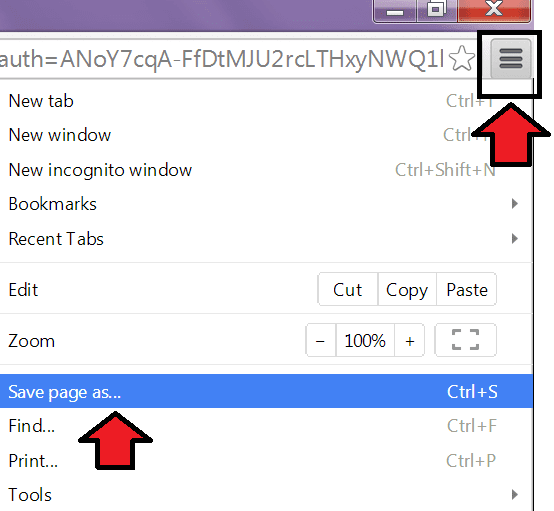
  • Now you can see your flash file, then click on Menu tab which is present on the top right of your browser or see the below screenshot describing the position of the menu tab.
  • Then click on Save Page As and save the file in your desktop.
  • Alternatively you can directly press CTRL+S, this will save the file to your PC.
  • But Make sure that you have saved the file with .swf extension otherwise your file will not run.

By Viewing The Source Code In Any Web Browser:

  • Open the website(which contains flash file) in your browser.
  • Then press the right button(right click) of your mouse and select View Page Source from the list.
  • Alternatively you can also press CTRL+U for the same. 
  • Then a new window will pop up, now you can see the coding of the entire page.
  • Then press CTRL+F and in search bar enter .swf, this will search all the URLs that end with .swf.
  • Now search the URL of the file you want.
  • Then copy the URL of your required file and paste it into the address bar of your browser and press Enter.
  • Now you can see your Flash file in a separate tab.
  • Now click on the Menu tab present on the top right of your browser, then click on Save Page As tab and save your file.
  • Or you can use CTRL+S for the same.
  • Now you have your flash file use it wherever you want.
Don't know how to use it !

Read the below article :
Read more ...